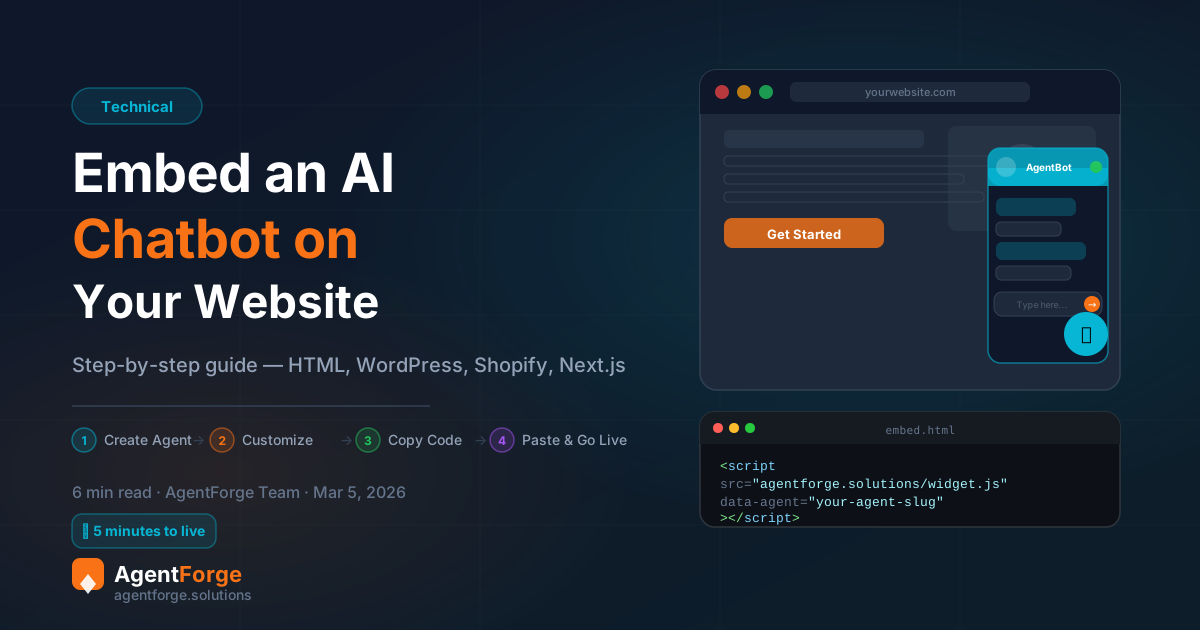
The fastest way to embed an AI chatbot on your website takes under five minutes and requires zero backend code. Whether you run a plain HTML site, a WordPress blog, a Shopify store, a Webflow landing page, a Wix site, or a Next.js app — the process is the same: create an agent, copy a one-line script, paste it into your site. That is it. This guide walks through every platform step by step so you can go live today.
Why Every Website Needs an AI Chat Widget
Industry data consistently shows that live chat increases website conversion rates by around 40 percent compared to sites without it. Visitors who engage with a chat widget are significantly more likely to complete a purchase, submit a lead form, or book a call. But traditional live chat has a fatal flaw: it only works when a human agent is online. The moment your team clocks off, the widget goes dark and those leads evaporate.
An AI chat widget solves this at the root. It is available 24 hours a day, 7 days a week, 365 days a year. It handles frequently asked questions, qualifies leads, collects contact details, and routes complex enquiries to your inbox — all without human intervention. A visitor browsing your pricing page at 2 AM on a Sunday gets the same quality response as one who visits on a Tuesday afternoon.
Step 1 — Create Your AI Agent
After you sign up, you will land in the AgentForge dashboard. Click New Agent and choose a template that matches your use case — options include sales assistant, lead qualifier, customer support bot, restaurant concierge, and more. Give your agent a name, write a short system prompt describing how it should behave, and select the AI model that fits your plan. The whole process takes about two minutes.
If you want a deeper walkthrough of the agent builder — including how to upload a knowledge base, configure a welcome flow, and set up structured data like business hours and pricing — read our companion guide: How to Build an AI Agent Without Code in 2026.
Step 2 — Customise Your Widget
Before you copy the embed code, spend two minutes in the Widget tab of the agent builder. This is where you control how the chat widget looks and behaves on your site.
Appearance
- Primary colour — set a hex value that matches your brand. The default is AgentForge orange
#F97316, but any colour works. - Bot name — the name displayed in the chat header. Use your product name or a persona name like "Aria" or "Max".
- Avatar — upload a custom image or emoji. A branded avatar increases trust and engagement.
- Position — bottom-right (default) or bottom-left. Choose based on your site layout so the widget does not overlap important UI elements.
Welcome Message
The welcome message is the first thing a visitor reads when they open the widget. Keep it short, specific, and action-oriented. Instead of "Hi, how can I help?" try "Hi! I can answer questions about pricing, book a demo, or help you find the right plan. What do you need?" Specific openers dramatically increase engagement rates.
Pre-Chat Form
The pre-chat form appears before the conversation starts and asks the visitor for their name and email address. Enable this if lead capture is your primary goal — it ensures every conversation is tied to a real contact even if the visitor abandons midway. Disable it if you prioritise frictionless engagement, such as on a product support page where users just want fast answers.
Step 3 — Copy Your Embed Code
Navigate to the Deploy tab in the agent builder. You will see a one-line <script> snippet pre-populated with your agent slug and your chosen colour. It looks like this:
<script
  src="https://agentforge.solutions/widget/agentforge-widget.js"
  data-agent="YOUR_AGENT_SLUG"
  data-color="#F97316"
  async>
</script>
Replace YOUR_AGENT_SLUG with your actual agent slug (it is pre-filled in the dashboard). The async attribute means the script loads without blocking your page render, so there is zero impact on your Core Web Vitals. Copy the snippet — you will paste it into your site in the next step.
Embed AI Chatbot on a Plain HTML Website
Open your HTML file in any text editor. Find the closing </body> tag and paste the script immediately before it:
  <!-- AgentForge AI Chat Widget -->
  <script
    src="https://agentforge.solutions/widget/agentforge-widget.js"
    data-agent="your-agent-slug"
    data-color="#F97316"
    async>
  </script>
</body>
</html>
Save the file, upload it to your server, and refresh your browser. The widget bubble will appear immediately. No build step or framework required — it works on any HTML page including static site generators like Jekyll, Hugo, and Eleventy.
Embed AI Chatbot on WordPress
There are two equally simple methods.
Method 1 — Plugin (recommended): Install the free plugin Insert Headers and Footers by WPCode. Go to Settings > Insert Headers and Footers, paste the snippet into the Scripts in Footer box, and save. This method survives theme updates and works on any WordPress theme without editing code.
Method 2 — Theme Editor: In your WordPress admin, go to Appearance > Theme Editor. In the file list on the right, click footer.php. Find the </body> tag and paste the script before it. Click Update File. Note: this approach will be overwritten if you update your theme.
<!-- Paste into "Scripts in Footer" in WPCode -->
<script
  src="https://agentforge.solutions/widget/agentforge-widget.js"
  data-agent="your-agent-slug"
  data-color="#F97316"
  async>
</script>
The widget will appear on every page of your WordPress site. To show it only on specific pages, use the WPCode conditional logic options or add the snippet to individual page templates.
Embed AI Chatbot on Shopify
In your Shopify admin, go to Online Store > Themes. Click the three-dot menu next to your active theme and choose Edit Code. In the file tree, open Layout / theme.liquid. Find the closing </body> tag and paste the script immediately before it. Click Save.
  <!-- AgentForge Widget — paste before </body> in theme.liquid -->
  <script
    src="https://agentforge.solutions/widget/agentforge-widget.js"
    data-agent="your-agent-slug"
    data-color="#F97316"
    async>
  </script>
</body>
The widget will now appear on every page of your Shopify store — product pages, cart, checkout, and all. If you only want it on specific pages, use Shopify's Liquid conditionals (e.g., {% if template == 'product' %}) to wrap the script. A product-page chatbot that answers "Will this fit my X?" questions before the visitor bounces can measurably reduce cart abandonment.
Embed AI Chatbot on Webflow
In Webflow, open your project and go to Project Settings > Custom Code. Scroll to the Footer Code section and paste the embed script there. Click Save Changes, then publish your site. The widget will appear on all published pages.
If you only want the widget on specific pages, use the per-page custom code option: open the page in the designer, click the page settings icon, and paste the script in the Before </body> tag field for that page only. This is useful for agency clients where you want the chatbot only on the contact or pricing page.
Embed AI Chatbot on Wix
Wix uses its own code injection system. To embed an AI chatbot on a Wix website:
- From your Wix dashboard, go to Settings > Custom Code (in the Advanced section).
- Click + Add Custom Code.
- Paste the AgentForge script snippet into the code field.
- Set Add Code to Pages to All Pages (or choose specific pages).
- Set Place Code in to Body — end.
- Give it a name like "AgentForge Chatbot" and click Apply.
<!-- Paste this into Wix Custom Code > Body — end -->
<script
  src="https://agentforge.solutions/widget/agentforge-widget.js"
  data-agent="your-agent-slug"
  data-color="#F97316"
  async>
</script>
Republish your Wix site after saving. The widget bubble will appear in the bottom corner of every page you selected. Wix's custom code runs on both desktop and mobile, so no separate mobile configuration is needed.
Embed AI Chatbot on Next.js / React
In a Next.js application, use the built-in Script component from next/script with the lazyOnload strategy. This defers loading until after the page is fully interactive, which is ideal for a chat widget that is non-critical to the initial render.
Add the following to your root layout (app/layout.tsx) or to any specific page component:
import Script from 'next/script'

export default function RootLayout({ children }: { children: React.ReactNode }) {
  return (
    <html lang="en">
      <body>
        {children}
        <Script
          src="https://agentforge.solutions/widget/agentforge-widget.js"
          data-agent="your-agent-slug"
          data-color="#F97316"
          strategy="lazyOnload"
        />
      </body>
    </html>
  )
}
Using strategy="lazyOnload" ensures the widget script does not block hydration or affect your Lighthouse score. For plain React apps without Next.js, add the script tag to your public/index.html before the closing </body> tag — the same as the plain HTML approach above.
Step 5 — Test and Iterate
With the script in place, open your website in a fresh incognito window (this simulates a first-time visitor with no cookies). You should see the AgentForge chat bubble appear in the corner you selected. Click it, type a test message, and confirm the agent responds correctly.
- Does the welcome message render correctly?
- Is the widget colour consistent with your brand?
- Does the agent answer your most common questions accurately?
- On mobile, does the widget expand and collapse without obscuring content?
If the agent gives a wrong or incomplete answer, go back to the builder and refine the system prompt or add entries to the knowledge base. Most agents reach a production-ready quality after one or two iteration cycles.
Advanced: Open the Widget Automatically
You can programmatically open the chat widget after a visitor has been on the page for a set amount of time. This is useful for high-intent pages like pricing or checkout:
<script>
  // Auto-open the widget after 30 seconds
  setTimeout(function () {
    if (window.AgentForgeWidget && window.AgentForgeWidget.open) {
      window.AgentForgeWidget.open();
    }
  }, 30000);
</script>
Use this sparingly. Auto-opening on every page feels intrusive; auto-opening on your pricing page after 30 seconds of reading is a natural, high-converting moment.
Frequently Asked Questions
How do I embed an AI chatbot on my website for free?
Sign up for an AgentForge free trial, create an agent in the dashboard, navigate to the Deploy tab, and copy the one-line script snippet. Paste it before the closing </body> tag on any page. The widget appears immediately — no payment required to get started.
Does embedding a chatbot slow down my website?
No. The AgentForge widget script uses the async attribute on plain HTML sites and the lazyOnload strategy on Next.js, so it loads after the main page content. There is zero impact on Core Web Vitals or Lighthouse scores.
Can I embed an AI chatbot on WordPress without a plugin?
Yes. You can paste the script directly into your theme's footer.php via the WordPress Theme Editor (Appearance > Theme Editor). However, using the free WPCode plugin is recommended because it survives theme updates and requires no code editing.
How do I add an AI chatbot to Shopify?
In your Shopify admin, go to Online Store > Themes > Edit Code, open Layout/theme.liquid, and paste the AgentForge script before the closing </body> tag. The widget will appear on every page of your store instantly.
Add an AI Chatbot to Your Website
Create your agent, get the embed code, and go live in 5 minutes. Free trial included.
Get Your Embed Code Free →